Admiral CLI & Workload Access
The admrl command-line tool signs in with your Admiral account, manages devices, fleets, and configurations as documents, diagnoses devices, drives rollouts, and opens terminals inside your running workload container over the Admiral Mesh. Workload access needs no inbound ports, public IP, VPN, or SSH daemon in your image.
Customer remote access is workload/container access through admrl exec or admrl shell. This is the workload terminal experience referred to as the Console, not a host shell. Host/root SSH is reserved for Admiral platform administrators and is not a customer workflow.
Installing
The CLI is a single static binary with no runtime dependencies. There is one build per platform:
| Platform | File |
|---|---|
| macOS, Apple silicon | admrl-darwin-arm64 |
| macOS, Intel | admrl-darwin-amd64 |
| Linux, x86-64 | admrl-linux-amd64 |
| Linux, ARM64 | admrl-linux-arm64 |
| Windows, x86-64 | admrl-windows-amd64.exe |
Rename the file to admrl (admrl.exe on Windows), make it executable, and put it on your PATH:
chmod +x admrl-darwin-arm64
sudo mv admrl-darwin-arm64 /usr/local/bin/admrl
admrl version
To update, replace the binary with a newer build. Your sign-in is kept in your user configuration directory and survives updates.
Your sign-in is stored in ~/Library/Application Support/admrl on macOS, ~/.config/admrl on Linux, and %AppData%\admrl on Windows. Set ADMRL_CONFIG_DIR to use another location, for example one directory per organisation or a throwaway directory in CI.
Signing In
admrl login
The CLI prints a link and a short code (for example BKDF-QRTZ). Open the link while signed in to the dashboard (https://app.admrl.co/cli/activate), check that the code matches your terminal, and review the request: the computer name, the IP address it came from, and when it was made. Click Approve (or Deny if you did not run admrl login).
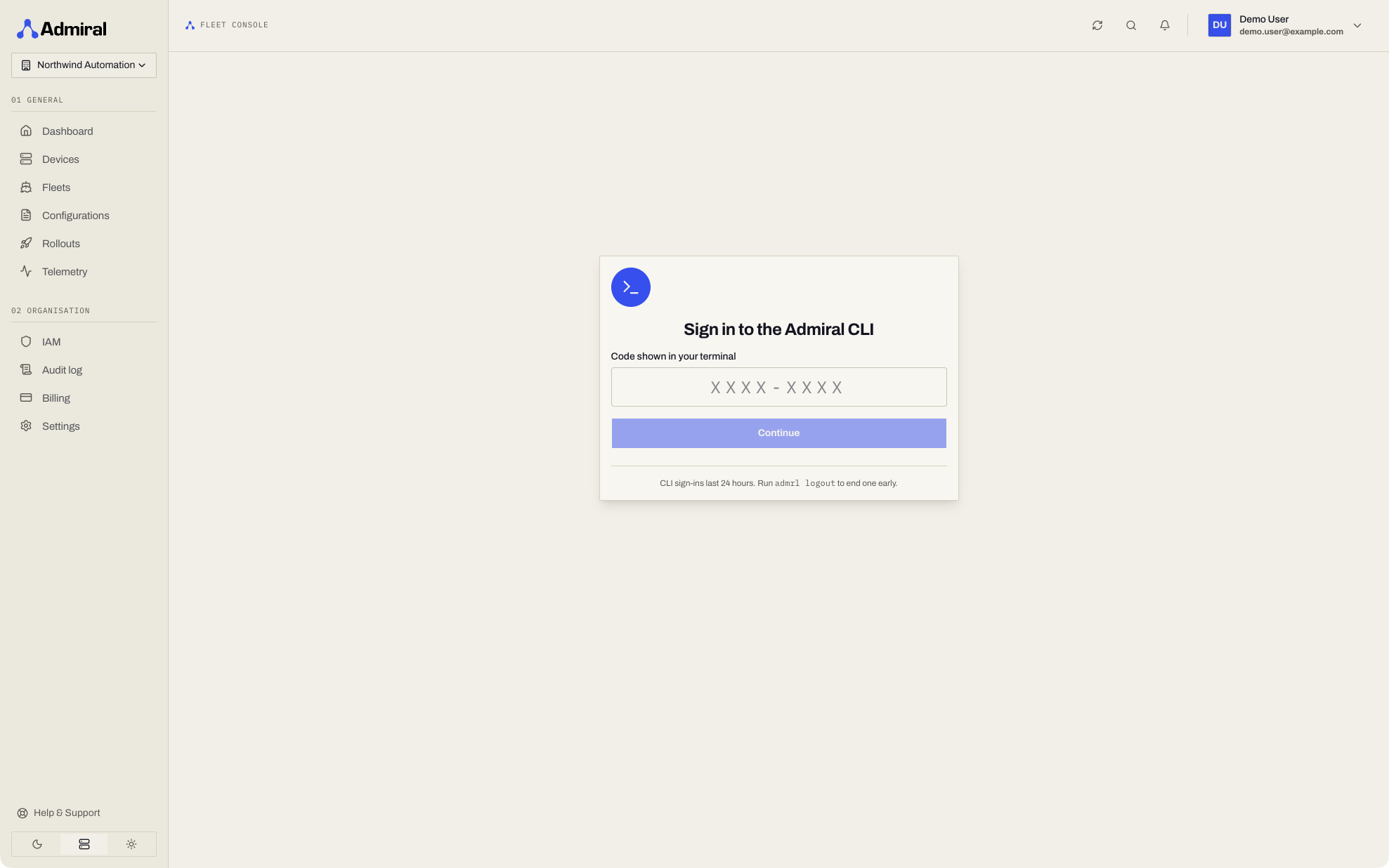
- Codes expire after 10 minutes.
- A CLI sign-in lasts 24 hours. Run
admrl loginagain the next day. - The token is stored only on your machine, readable only by your user. Admiral keeps only a hash of it.
| Command | Purpose |
|---|---|
admrl login [--api URL] | Sign in. Defaults to https://api.admrl.co. |
admrl whoami | Show the signed-in user and when the sign-in expires. |
admrl logout | Revoke the token and delete it locally. |
admrl use-org [<org-id>] | Show or set the organisation used by the document, diagnostics, and rollout commands below. --org <id> or ADMRL_ORG override it per command. |
admrl version | Print the CLI version and build. admrl --version does the same. |
admrl help | Print the command summary. admrl -h and admrl --help do the same. |
Flags and Environment
These flags work on every document, diagnostics, and rollout command:
| Flag | Meaning |
|---|---|
--org <id> | Organisation to use for this command. Overrides ADMRL_ORG and admrl use-org. |
--api <url> | API to talk to. It must be the one you signed in to. |
| Variable | Meaning |
|---|---|
ADMRL_API | API URL (default https://api.admrl.co). --api overrides it. |
ADMRL_ORG | Organisation for document, diagnostics, and rollout commands. |
ADMRL_CONFIG_DIR | Where the sign-in is stored. |
ADMRL_DEBUG | 1 or true logs shell and exec transport details to stderr, the same as -v. |
EDITOR, VISUAL | Editor opened by admrl edit. |
NO_COLOR | Disable coloured output. |
Devices, Fleets & Configurations as Documents
Every device, fleet, and configuration is a document you can read, edit, diff, and apply. Arguments accept a name or an ID; if a name is ambiguous the CLI lists the matching IDs.
| Command | Purpose |
|---|---|
admrl get devices|fleets|configurations [-l k=v] [-o wide|yaml|json] | List, optionally filtered by label (repeatable -l). |
admrl get device|fleet|configuration <id|name> [-o yaml|json] | Print one document (YAML by default). |
admrl edit device|fleet|configuration <id|name> [--yes] | Open the document in $EDITOR, show the server's render diff, and confirm before writing. status is read-only and ignored. |
admrl apply -f <file|-> [--dry-run] | Update one or more existing documents from a file (or stdin). --dry-run validates and shows the render diff without writing. |
admrl diff -f <file|-> | Show what applying the file would change on the devices. |
admrl move device <id|name> --fleet <id|name> | Move a device to another fleet. |
admrl override device <id|name> --set k=v... [--unset k] [--expires 2h] | Change the device's workload override. Keys: env.NAME=value, desiredState=stopped, image=..., or any override path. --expires drops the override automatically. |
admrl override device <id|name> --clear | Remove the whole override. |
admrl watch device <id|name> | Stream condition changes, workload changes, and progress (image_pull 41% 12 MB/s eta 20s layer 3/5) until Ctrl-C. |
admrl get device amr-dock-07 -o yaml > amr-dock-07.yaml
# edit the file, then:
admrl diff -f amr-dock-07.yaml
admrl apply -f amr-dock-07.yaml
apply and edit only write if the document has not changed since you fetched it. If it has, they stop with exit code 3: fetch it again and re-apply your change.
Diagnostics
| Command | Purpose |
|---|---|
admrl diagnose device <id|name> | Verdict and issues from the device's last reports. Works offline. |
admrl state device <id|name> [--live] [-o yaml|json] | The device's reported state. --live asks the device now (online devices only). |
admrl probe device <id|name> [--section s] [--timeout 20s] | Run the live probe on the device; --section (repeatable) limits it to network, time, storage, and so on. --timeout is the device-side budget (default 20 seconds, maximum 60). |
A live state read and a live probe share one limit of one request per 5 seconds per device. Repeating either sooner fails with "the device is busy with another command, try again": wait a few seconds and run it again.
See Device State & Diagnostics.
Rollouts
| Command | Purpose |
|---|---|
admrl rollout create -f fleet.yaml [--canary 1] [--max-in-flight 50] [--max-unavailable 2] [--failure-threshold 0.1] [--progress-deadline 30m] [--name n] [--description text] [--dry-run] [--watch] | Roll the configuration version pinned in a Fleet document (spec.configuration with an explicit version) out to that fleet. --dry-run shows the per-device changes and creates nothing. |
admrl rollout status <id|name> [--watch|-w] [-o yaml|json] | Status and counts (admrl rollout get is the same command); --watch prints one line per device phase change until the rollout finishes. |
admrl rollout pause|resume <id|name> | Pause or resume admitting devices. |
admrl rollout cancel|rollback <id|name> [--yes] | End the rollout, or send admitted devices back to their previous version. Asks for confirmation unless --yes. |
See Rollouts.
Interactive Shell and Container Exec
The CLI opens interactive shells and executes commands inside a running workload container, without an SSH daemon in your image.
# Open an interactive shell inside the workload container
admrl shell edge-1

# Run a command in the workload container (stdout, stderr, exit code pass through)
admrl exec edge-1 -- ls -l /data

# Interactive terminal with stdin open
admrl exec edge-1 -i -t -- sh

# Pipe data into a command running in the workload
tar c . | admrl exec edge-1 -i -- tar x -C /data
Flags
| Flag | Meaning |
|---|---|
-i | Keep stdin open for streaming data. |
-t | Allocate a pseudo-terminal (default when stdin and stdout are terminals and no command is specified). |
-v | Verbose transport logging to stderr. |
--direct | Use direct peer-to-peer transport only. Fails if a direct path is unavailable. |
--relay | Force relay transport through the Admiral Mesh. |
--org <id> | Target organisation ID. |
--api <url> | Target API URL. |
--no-login | Do not prompt for inline browser sign-in if credentials have expired. |
Permissions for Shell and Exec
- Running
admrl shelloradmrl execrequires the Open workload terminal capability (remote.exec) covering the target device. Grant it in a custom role at organisation, fleet, or device scope. - Remote access must be enabled for the target fleet. If access is disabled, contact your organisation administrator or Admiral support.
- Commands and shells run from your workload image. Include a shell in the image for interactive access; for a minimal image without a shell, use
admrl execwith an executable the image contains.
Exit Codes
| Code | Meaning |
|---|---|
0 | Success. |
1 | Error (network, permission, validation, device offline). |
2 | Usage error (bad flags or arguments). |
3 | Conflict: the document changed since you fetched it, or the rollout cannot take that action in its current state. |
Troubleshooting the connection
Use -v with admrl shell or admrl exec to log transport details to stderr. --direct tests a peer-to-peer path without falling back to a relay; --relay uses the Admiral Mesh relay. These two flags cannot be combined. If the CLI reports that you are signed out, run admrl login again.
Admiral support access
Organisation Administrators and Owners can manage Settings > Support access with the Manage support access capability. See Admiral Support Team for platform troubleshooting and audited support actions.