Alerts & Alert Rules
Admiral raises alerts in two ways:
- Platform alerts are built in. They cover common hardware and connectivity failures (device offline, fleet outage, connection flapping, CPU, memory, disk, log storage, temperature, process count, and hardware faults) and need no setup.
- Your rules are alert rules you write against any metric or log query in Telemetry.
Both kinds appear together in Telemetry > Alerts, on the dashboard Alerts card, and in webhook deliveries.
Platform alerts and in-app notifications are included on every plan. Creating and editing your own rules, and delivering any alert to webhooks, need the Telemetry add-on. If the add-on is turned off, your rules are kept but stop being evaluated, and you can still delete them. See Plans & Add-ons.
Viewing Alerts
Open Telemetry > Alerts (/telemetry?tab=alerts). The tab badge shows how many alerts are firing right now.
- Filters: state (All, Firing, Resolved), source (All sources, Platform, Your rules), and severity.
- Columns: Alert, Severity, State, Target (organisation, fleet, or device), Started, Duration.
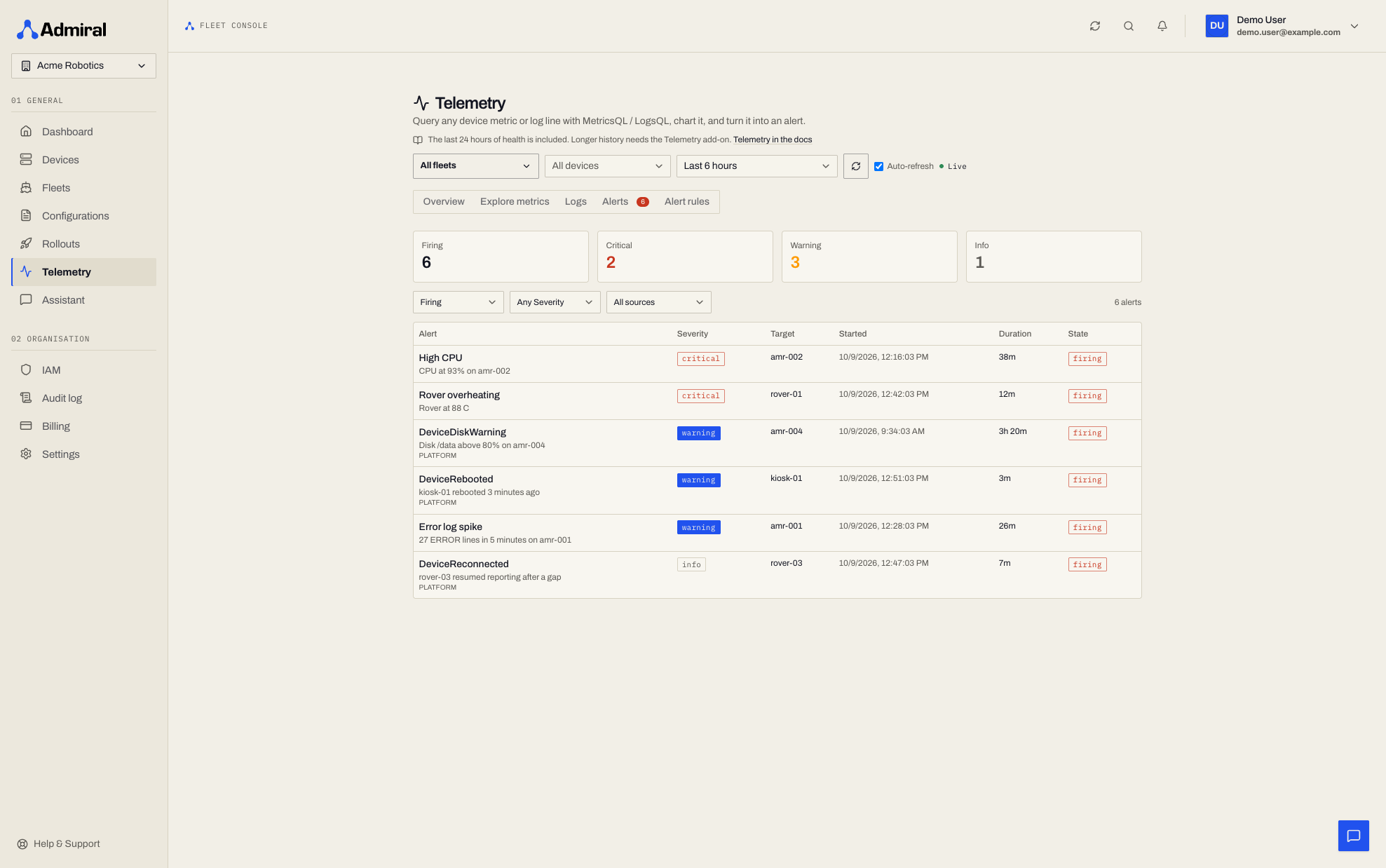
Firing alerts live on this tab. The home dashboard does not list them; its Attention required panel groups the devices that need action right now (for example Offline), each row linking to the device or fleet. When nothing needs action it shows a single All clear line.
Resolved alerts are kept for 90 days.
Built-in Platform Alerts
These run for every device with no setup. warning and critical alerts also notify users in-app, and every platform alert is delivered to your webhooks.
| Alert | Severity | Fires when |
|---|---|---|
| Device offline | Critical | No telemetry for 5 minutes (held for 2 more minutes). |
| Device reconnected | Info | A device resumes reporting after a gap. |
| Device rebooted | Warning | Uptime under 5 minutes. |
| Connectivity flapping | Warning | The connection state changed more than 6 times in 15 minutes, for 5 minutes. |
| Fleet mass outage | Critical | More than 30% of a fleet's devices are offline for 3 minutes. |
| Fleet many offline | Critical | More than 50 devices in a fleet are offline for 3 minutes. |
| Temperature elevated / overheating | Warning / Critical | Above 70 C for 5 minutes / above 80 C for 2 minutes. |
| CPU high | Warning | Above 90% for 10 minutes. |
| Memory high | Warning | Above 90% for 10 minutes. |
| Load per core high | Warning | 5-minute load per core above 2 for 10 minutes. |
| Swap thrashing | Warning | More than half of swap in use for 15 minutes. |
| Disk filling up / almost full | Warning / Critical | A data disk above 80% for 10 minutes / above 90% for 5 minutes. Boot partitions are excluded. |
| Battery low / critical | Warning / Critical | Below 20% / below 10% while discharging. |
| Disk or inode exhaustion predicted | Warning | At the current rate, a disk or its inodes will run out within 24 hours. |
| Disk SMART failing | Critical | A disk with SMART data reports failure. |
| Disk bad sectors, wear, or heat | Warning | Reallocated sectors increasing, flash wear above 85%, or disk temperature above 65 C. |
| Zombie processes | Warning | More than 20 for 15 minutes. |
| Network errors or drops rising | Warning | Sustained interface errors or dropped packets for 10 minutes. |
| Anomalies against the device's own baseline | Warning | CPU far above its own 6-hour norm; process count spiking; memory climbing towards exhaustion within 6 hours. |
| Anomalies against fleet peers | Warning | In fleets of 10 or more devices: temperature or CPU well above the fleet's 95th percentile. |
| Disk errors in logs | Critical | I/O errors, bad sectors, or read-only remounts in the device log. |
| Kernel panic or BUG in logs | Critical | Kernel panic, oops, or BUG in the device log. |
| Out-of-memory kills in logs | Warning | The kernel killed a process for lack of memory. |
| Error log flood | Warning | More than 10 ERROR lines in 5 minutes, held for 5 minutes. |
Notifications are grouped and rate-limited: repeat notifications for a still-firing alert are sent at most every 4 hours (24 hours for info). A fleet-wide outage suppresses the per-device offline alerts, an offline device suppresses resource alerts about itself, and a critical alert replaces the matching warning for the same device.
These are the platform defaults. To alert on a different threshold, create your own alert rule.
Creating an Alert Rule
Start from Telemetry > Alert rules > New rule, or click Alert on this in Explore metrics or Logs to start from the query you are looking at.
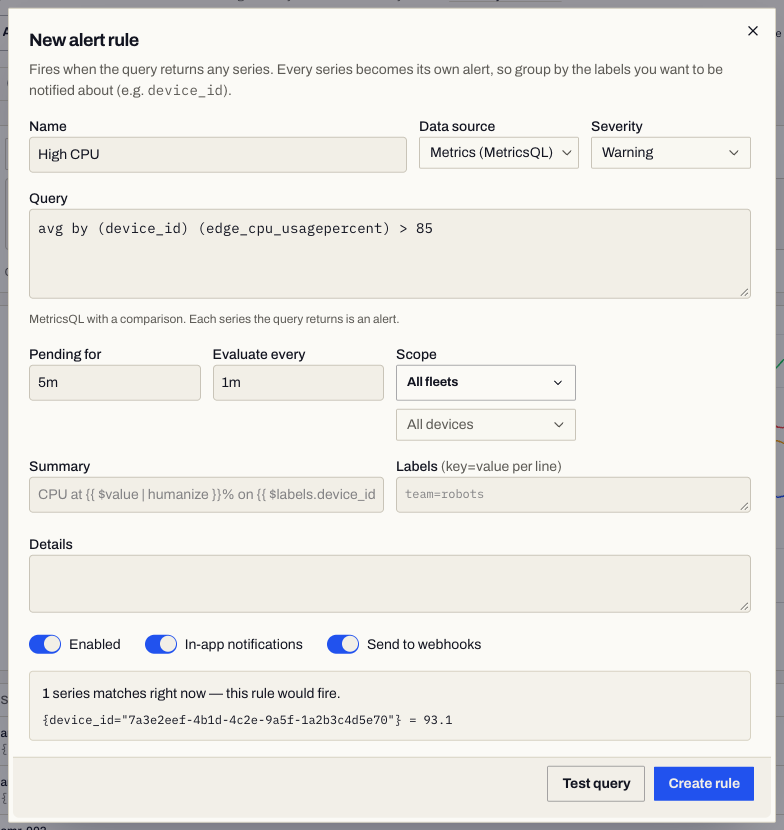
| Field | Description |
|---|---|
| Name | Up to 120 characters: letters, digits, spaces and _ . : ( ) / -. Must be unique in the organisation. |
| Data source | Metrics (MetricsQL) or Logs (LogsQL). |
| Query | The condition. A metric rule fires for every series the query returns, so include the comparison (for example edge_system_temperature > 85). A log rule must aggregate with | stats ..., for example error | stats count() as errors | filter errors:>10. |
| Severity | info, warning (default), or critical. |
| Pending for | How long the condition must hold before the alert fires. Default 5 minutes; 0 seconds to 7 days. |
| Evaluate every | Evaluation interval. Default 1 minute. Metric rules: 30 seconds to 1 hour. Log rules: 1 minute to 1 hour. |
| Scope | Fleets and devices the rule covers. Leave empty to cover the whole organisation. |
| Labels | Up to 16 key=value pairs, one per line, added to every alert. |
| Summary / Details | Text shown on the alert and in notifications. |
| Enabled | Turn the rule off without deleting it. |
| In-app notifications | Notify users when the alert fires. |
| Send to webhooks | Deliver alert.firing and alert.resolved events to your webhooks. |
Click Test query to run the query now and see what it returns before saving. Admiral also test-runs the query when you save and rejects queries that do not parse.
Templating Summary and Details
Summary (up to 1 KB) and Details (up to 4 KB) accept two placeholders, optionally followed by a formatter:
{{ $value }}                      the value that triggered the alert
{{ $labels.device_id }}           any label on the series
{{ $value | humanize }}           also: humanize1024, humanizePercentage, humanizeDuration
No other template syntax is accepted.
Rule Status
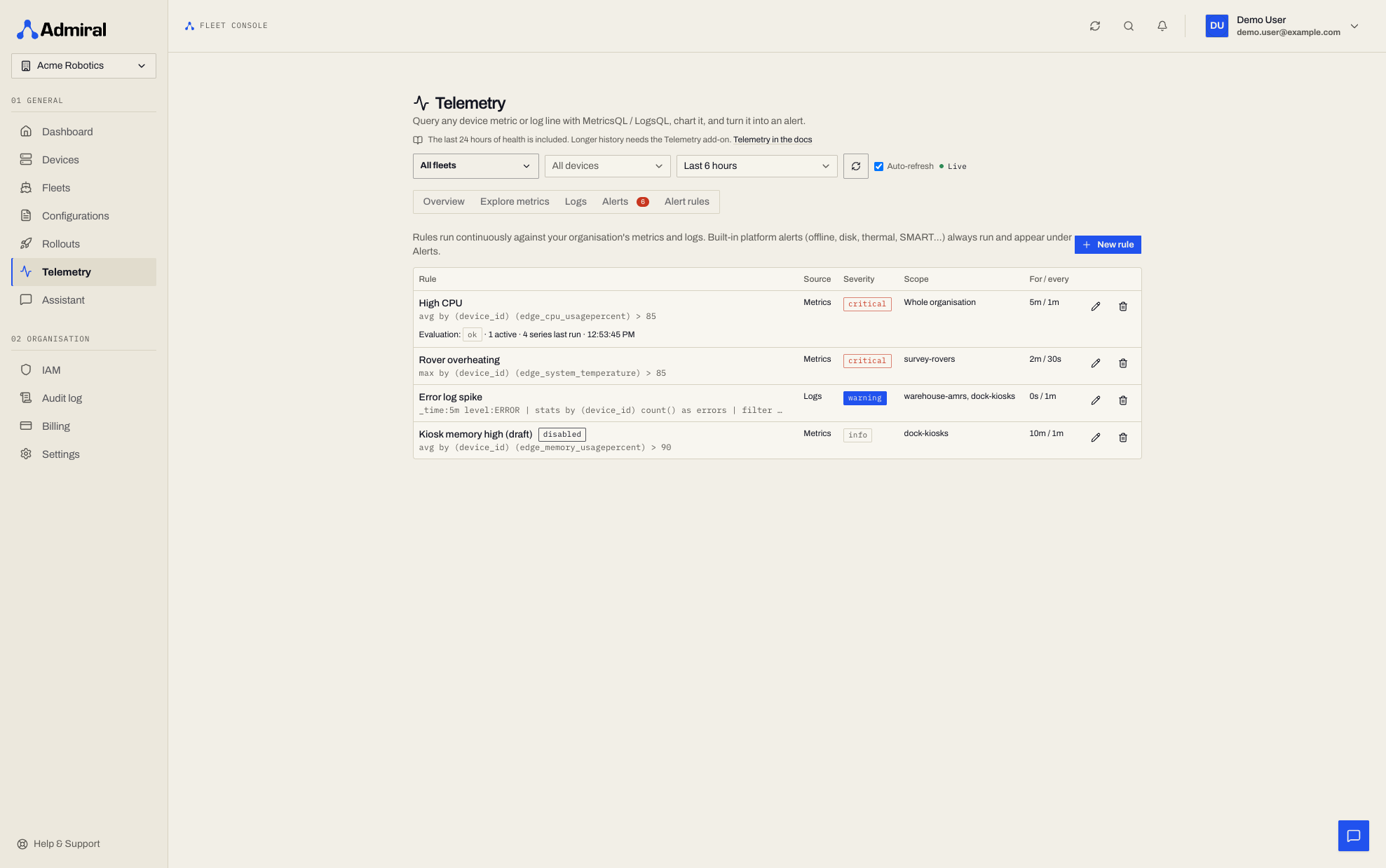
Alert rules lists every rule with its source, scope, severity, and pending and evaluation interval. Select a rule to see its live evaluation status (health, last evaluation, series on the last run, number of active alerts, and last error). A newly saved rule starts evaluating within about two minutes.
Limits
- 200 rules per organisation.
- Query up to 8 KB.
- Reserved label names:
alertname,severity,org_id,fleet_id,device_id,alert_type,alertgroup, and anything starting withadmiral_or__.
Notifications
| Channel | Platform alerts | Your rules |
|---|---|---|
| In-app | On firing, for warning and critical. | On firing, if In-app notifications is on. |
| Browser push | Opt-in; no Telemetry add-on needed. | Opt-in, if In-app notifications is on (Telemetry add-on). |
| Webhooks | Delivered as alert.firing / alert.resolved with the Telemetry add-on. | If Send to webhooks is on (Telemetry add-on). |
In-app notifications go to users who can view the alert's device, fleet, or organisation. Severity maps to notification priority: critical is Critical, warning is High, info is Medium.
See Webhooks for the event payload.
Browser Notifications
Receive alerts even when Admiral is closed. Browser notifications are off by default: each user opts in and subscribes each browser or device separately. Notification preferences apply to your account in the current organisation.
- Open Settings > Notifications in the dashboard.
- Under Browser notifications, click Enable on this device and allow notifications in the browser permission prompt.
- Click Send test to send a test notification to your subscribed devices in the current organisation.
If you previously blocked notifications, allow them in this site's browser permissions before trying again.
Under Notification preferences, choose Browser push on or off for each Notification type, and set its Minimum priority (Low, Medium, High, or Critical). Alerts raised by the alerting system use Device health alert; device connection notifications use Device offline and Device online. Channel switches save immediately; click Save preferences after changing priorities or quiet-hours fields.
Turn on Quiet hours and set Start, End, and Timezone to silence non-critical notifications during that period. Critical alerts are still delivered during quiet hours, provided you have enabled their notifications.
Alert recipients follow access to the affected device or fleet; organisation-wide alerts go to users who can view organisation-wide telemetry. Browser push also requires a subscription and your notification preferences to allow delivery. Keep In-app notifications and the relevant In app switch enabled: browser push is sent from notifications created for you. Your custom alert rules still require the Telemetry add-on and the rule's In-app notifications setting; platform alerts such as device offline do not require the add-on.
To stop notifications on a browser or device, click Remove next to it in the list of subscribed devices. You can remove any of your devices from any browser.
Supported Browsers
Browser notifications work in Chrome, Edge, Firefox, and Safari (macOS 13 or later), where the browser provides push support.
- iPhone and iPad: in Safari, use Add to Home Screen, then open Admiral from the Home Screen before enabling notifications.
- Brave: turn on Use Google services for push messaging in
brave://settings/privacybefore enabling notifications.
Access
- Viewing alerts and rules follows your telemetry scope. Organisation-wide telemetry (
telemetry.view) shows every rule. Otherwise you see the rules and alerts for the fleets and devices you can view, and others are hidden. - Creating and editing rules requires the Edit alert rules capability (
alerts.edit), held by the Administrator, Engineer, and Owner roles at organisation scope. You can only scope a rule to fleets and devices you can see. If your access is limited, a rule left unscoped is narrowed to your fleets and devices.
API
| Endpoint | Purpose |
|---|---|
GET /v1/alerting/rules | List rules. |
POST /v1/alerting/rules | Create a rule. Returns 201. |
GET|PUT|DELETE /v1/alerting/rules/{ruleId} | Read, replace, or delete a rule. |
POST /v1/alerting/rules/preview | Test-run a query. Returns status, series, result, error. |
GET /v1/alerting/rules/{ruleId}/status | Evaluation status. |
GET /v1/alerting/alerts | Alert history. Filters: state, severity, rule_id, source (platform or custom), since (RFC 3339), limit (default 100, max 500), offset. |
GET /v1/alerting/alerts/summary | Counts of firing alerts: firing, critical, warning, info. |
curl -sS -X POST https://api.admrl.co/v1/alerting/rules \
  -H "Authorization: Bearer $ADMIRAL_TOKEN" \
  -H "X-Organization-ID: $ADMIRAL_ORG" \
  -H "Content-Type: application/json" \
  -d '{
    "name": "Enclosure overheating",
    "datasource": "metrics",
    "expr": "max by (device_id) (edge_system_temperature) > 85",
    "for_seconds": 300,
    "interval_seconds": 60,
    "severity": "critical",
    "fleet_ids": ["'"$FLEET_ID"'"],
    "summary": "Temperature {{ $value | humanize }} C",
    "notify_in_app": true,
    "notify_webhooks": true
  }'
Unknown fields are rejected. A duplicate name returns 409; exceeding the rule limit returns 422.