Bluetooth Field Service
When a device is offline (a dead uplink, a changed Wi-Fi password, a misbehaving workload), a technician standing next to it can still diagnose and repair it from a browser over Bluetooth. Access is granted by Admiral Cloud according to the technician's permissions, and the device verifies it without needing a network connection.
Open the device in the dashboard and choose Repair over Bluetooth from the action menu (...). This opens https://app.admrl.co/devices/service locked to that device; connecting to a different device is refused.
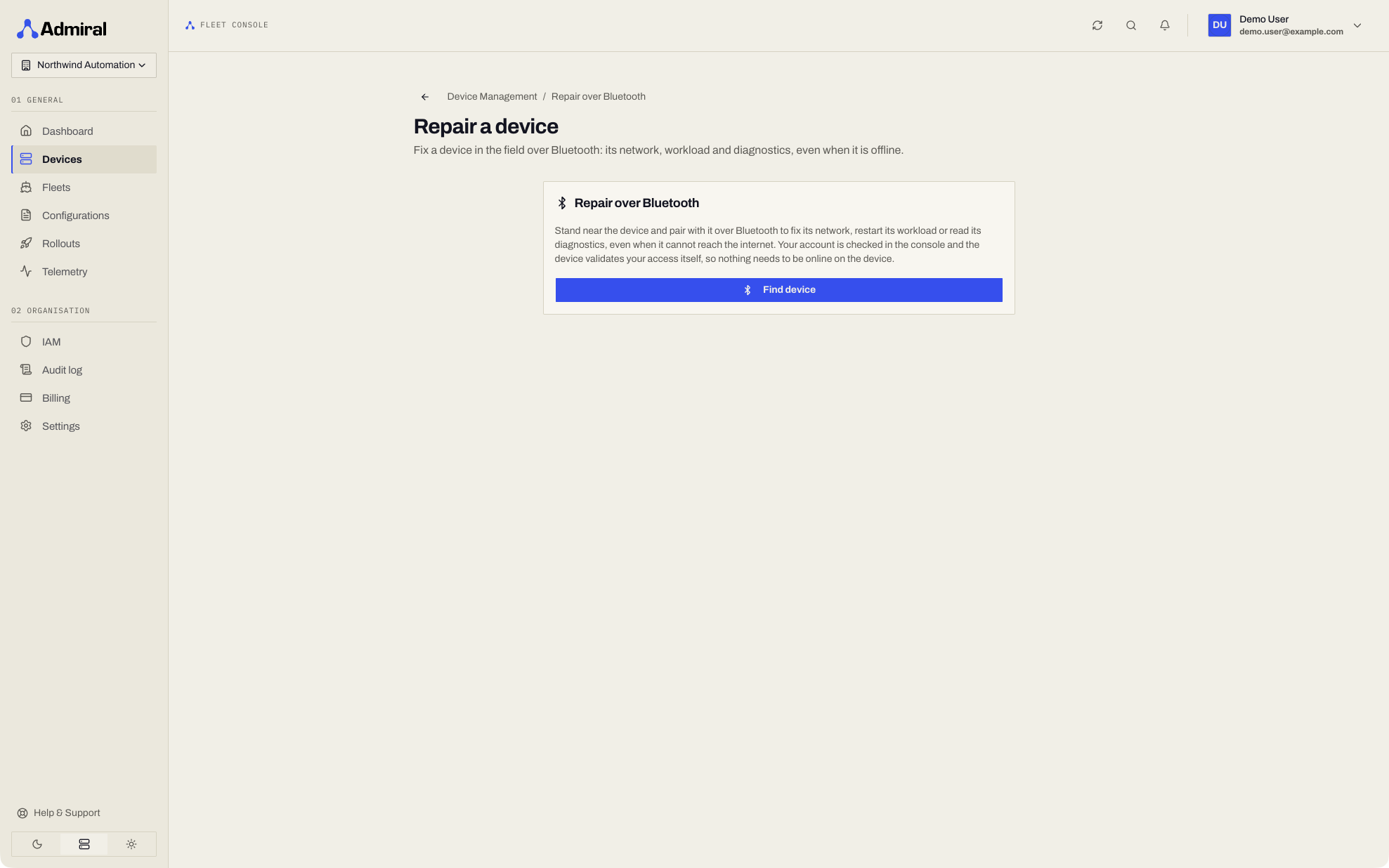
Browser requirements are the same as Bluetooth provisioning: Chrome or Edge on desktop, or Chrome on Android.
The browser needs internet access only for a moment, to request a short-lived access token from Admiral Cloud when the session starts. The device itself can be completely offline.
What a Technician Can Do
What a technician can do depends on the capabilities the dashboard grants them on the device, through their Roles & Permissions. The device's Bluetooth scopes follow those capabilities:
| Device capability | Bluetooth scopes | Allows |
|---|---|---|
| View devices | diag | Identify the device, view workload status and device details, and run diagnostic probes. |
| Operate devices | diag, operate, network | Also: start, stop, restart, or recreate the workload; diagnostics mode; the device screen; Wi-Fi, Ethernet, static IP, and proxy settings. |
| Delete devices | diag, operate, network, admin | Also: reboot and power off the device, and unpair it. |
Reboot and power off need Delete devices, which the Administrator and Owner roles include. A Technician can restart the workload over Bluetooth, but cannot reboot or power off the device.
The session header shows the granted access, with Identify (makes the device beep) and Disconnect.
Tabs
- Overview: workload state, configuration, and version. With Operate devices: Start, Stop, Restart, Recreate, and Diagnostics mode, which keeps the workload stopped while you investigate. Without it, the page shows Your access to this device is read-only.
- Network (Operate devices): the same Wi-Fi, Ethernet, static IP, and proxy settings as provisioning. Click Apply network settings.
- Diagnostics (View devices): Run diagnostics checks network interfaces, gateway and DNS, reachability and latency to Admiral Cloud, clock drift, device identity and cloud session, Bluetooth, filesystems and crash logs, boot slot and Secure Boot state, and thermals. Results are grouped with pass, warning, and error markers. Copy puts the report on your clipboard; Show on device screen displays it on the device's own display.
- Device screen (Operate devices): switch what the device's attached display shows: Overview, Details, Diagnostics, Wi-Fi, or Event log. On the standard console, Diagnostics and Wi-Fi open their screens, and the other three return the display to its main status screen. The new on-device console has a separate screen for each.
- Power (Delete devices): Reboot or Power off, each with a confirmation.
How Access Works
- The browser connects to the device over an encrypted Bluetooth session and reads a one-time challenge.
- The browser asks Admiral Cloud for an access token. Admiral checks the technician's permission on the device and signs a token valid for five minutes, bound to that device, that Bluetooth session, and that challenge.
- The device verifies the token using keys it received the last time it was online. No network is needed.
A captured token is useless on any other connection, and every request inside the session is encrypted and replay-protected.
Session rules:
- One technician at a time. A session stays reserved for 30 seconds after its last request (the browser keeps it alive automatically), and disconnecting frees the device immediately.
- After five failed authentication attempts in a row, the device refuses new attempts for 60 seconds.
- A claimed device only advertises for field service after it has received its verification keys from Admiral Cloud.
- Factory resetting the device returns it to open, unclaimed setup mode.
API
POST /v1/devices/{deviceId}/access-token with {"nonce": "...", "client_public_key": "..."} returns token, expires_at, scopes, and key_id. This is used by the dashboard; the full Bluetooth exchange is described in BLE Provisioning Protocol.