Configurations & Workloads
A Configuration in Admiral defines the desired state of containerized workloads running on your physical edge nodes, autonomous mobile robots (AMRs), industrial IoT appliances, and interactive kiosks.
Unlike traditional cloud container platforms that treat OCI containers as isolated, disposable single-process wrappers, Admiral unpacks OCI images into a complete, bootable userspace. This architectural difference enables you to deploy multi-service system architectures, embedded Linux appliances, and robotics stacks directly onto bare metal.
The Full-Userspace Execution Model
To understand how workloads behave on Admiral, it is essential to distinguish Admiral's execution model from conventional Docker Desktop or Kubernetes runtime assumptions:
- Complete Root Filesystem (Rootfs): Admiral downloads your OCI image, unpacks its layers into the local image cache, and creates an independent Copy-on-Write (CoW FS) subvolume snapshot as the container's root filesystem.
- Multi-Service Stacks: You can run an entire multi-process appliance inside a single workload. For example, a single OCI image can package and run an application supervisor, a local Python web server, background workers, and local hardware daemons simultaneously. Remote workload access uses the CLI without an SSH daemon in the image.
- Direct Hardware & Kernel Integration: The workload interacts directly with the host Linux kernel interfaces (SocketCAN, DRM/KMS, ALSA, V4L2, and cgroups v2) without intervening hypervisors or virtualization overhead.
- Build with Docker, Deploy on Admiral: You can build, tag, and test your images using standard
docker buildor BuildKit pipelines. However, runtime startup, environment synthesis, and hardware access follow the documented Admiral launch contract below.
How Admiral Launches OCI Workloads (The Launch Contract)
When Admiral creates and starts a workload, it synthesizes an OCI runtime specification based on your image metadata and configuration parameters. The launch contract is strictly defined as follows:
1. ENTRYPOINT and CMD Precedence
Admiral adheres to standard OCI specification semantics when building the workload process arguments:
| Configuration Setting | Image Metadata | Effective Process Command |
|---|---|---|
Command Specified in Config (e.g. ["/opt/venv/bin/app", "--port", "8080"]) | ENTRYPOINT and/or CMD present | Config Command completely overrides both ENTRYPOINT and CMD. The image's original entrypoint and cmd are ignored. |
| Command Left Empty in Config | ENTRYPOINT and CMD present | Merged: img.Entrypoint + img.Cmd (Standard OCI behavior). |
| Command Left Empty in Config | Only ENTRYPOINT present | img.Entrypoint is executed with no trailing arguments. |
| Command Left Empty in Config | Only CMD present | img.Cmd is executed as the primary binary and arguments. |
| Command Left Empty in Config | Neither ENTRYPOINT nor CMD present | Defaults to ["sleep", "infinity"] to keep the container namespace alive for diagnostics. |
When defining commands in your Dockerfile or Admiral configuration, always use the exec-form array (e.g. ["/path/to/binary", "arg1"]) rather than a shell-form string. Shell form implicitly prefixes /bin/sh -c, which can alter signal forwarding during container updates.
2. Environment Variable Precedence & The PATH Rule
Environment variables are deduplicated and merged in the following strict order of precedence (lowest to highest):
Image Metadata (ENV) → Fleet Configuration (Environment) → Device Overrides → Runtime System Injection
- Image Environment (
ENV): Loaded directly from the OCI image configuration. - Fleet Configuration (
Environment): Variables defined in your Admiral configuration overwrite matching image variables. - Per-Device Overrides: Device-level configuration overrides overwrite fleet variables. Set them from Workload > Configuration, Workload > Document (Edit override), or
admrl override device <name> --set env.NAME=value; see Device Documents. - Runtime System Injection: The supervisor injects several mandatory system variables into the final execution environment:
container=crun: Informs systemd and init scripts that they are executing inside an OCI container.ADMRL_ID=<workload_id>: The unique identifier of the active workload instance.TERM=linux: Default terminal emulation (honors image or configuration overrides if set).CLICOLOR_FORCE=1: Forces CLI and terminal libraries (such as Bubbletea or Rich) to emit ANSI color sequences over piped stdout buffers.PATH: Preserves custom paths from the image (ENV PATH) or configuration (e.g./opt/venv/binfor Python virtualenvs or/root/.cargo/bin), while guaranteeing standard system directories (/usr/local/sbin:/usr/local/bin:/usr/sbin:/usr/bin:/sbin:/bin) are appended if missing.
While Admiral preserves image PATH variables (including Python virtual environments at /opt/venv/bin), invoking executables via explicit absolute paths in your ENTRYPOINT or Command remains the gold standard for appliance determinism.
# Recommended Dockerfile entrypoint
ENTRYPOINT ["/opt/venv/bin/python", "-m", "my_service"]
# Or with explicit binary path
ENTRYPOINT ["/opt/venv/bin/my-service"]
This protects your workload from working-directory shifts, shell wrappers, or ambient environment variations across different base operating systems.
3. Working Directory (WORKDIR)
The supervisor launches the primary container process with working directory / (Cwd: "/"). If your application depends on a specific directory, explicitly change directory in an entrypoint wrapper script (cd /app && exec ...) or configure your application to reference absolute paths.
4. User & Privileges (USER)
Admiral initializes the workload process with root privileges (UID 0, GID 0) inside the workload namespace.
Because Admiral workloads run with comprehensive Linux capabilities (CAP_SYS_ADMIN, CAP_NET_ADMIN, CAP_NET_RAW, CAP_MKNOD, CAP_SYS_NICE), multi-service containers have full authority to manage internal processes. Your container can start as root, configure system settings (e.g. create device symlinks or network interfaces), and drop privileges to specific service users (lp, www-data, nobody) for individual daemons.
5. Health Checks (HEALTHCHECK)
The low-level OCI runtime specification (specs.Spec) does not execute Docker-specific HEALTHCHECK instructions.
Admiral monitors workload health via continuous process supervision:
- The supervisor tracks the root process PID and its entire child process cgroup.
- If the primary process exits or crashes, the supervisor captures the exit code and output, emits an event to Admiral Cloud, and restarts it with backoff (2 seconds per consecutive failure, capped at 30 seconds). The counter resets once the workload has stayed up for a minute.
- Admiral does not run application-level liveness probes. If your application can hang without exiting, run a watchdog inside the image that exits the main process when the check fails, and the supervisor will restart it.
Automatic Workload Rollback
Every new configuration runs on probation on the device, measured against the configuration it replaced:
- Probation starts when the new image is on disk and the workload is started. The previous configuration stays cached and its image is protected from cleanup.
- The new configuration is proven once it has stayed up for 3 minutes since its last failure. From then on it behaves like any other running configuration.
- The device rolls back on its own if, before that, the workload fails 3 times (crashes or failed starts), or the machine reboots twice without the configuration proving itself. It starts the previous configuration. If the failed update changed the image, the previous configuration gets a fresh root filesystem; if only configuration settings changed (same image), the existing root filesystem is kept. No cloud connection is needed.
- The device keeps refusing the failed configuration until a different one arrives, so a stale push from the cloud cannot put it back into a crash loop.
The device reports the rollback in its workload status: it is now running the previous version, with the version it rolled back from, the reason, the failure count, and the time. To retry, publish a new configuration version (the same image under a new version is fine); that clears the rollback.
Rollback only applies to an update from a configuration that was running. The first configuration on a device, or one replacing a stopped workload, has nothing to fall back to and restarts with backoff as normal.
Custom Volumes are not rolled back. If a new release migrates data on a volume, make sure the previous release can still read it, or take a snapshot before the rollout.
Execution Modes: Background Service vs. Interactive Mode
In your Admiral configuration under Runtime Options, you can toggle Interactive Mode:
Interactive Mode: ON / OFF (API: options.interactive = true | false)
Understanding what this flag changes is critical for both headless background services and graphical kiosk displays:
| Dimension | Background Service Mode (interactive: false) | Interactive Mode (interactive: true) |
|---|---|---|
| Intended Use Case | Headless daemons, Python/Go web servers, ROS2 navigation stacks, edge telemetry workers, background services. | Fullscreen user interfaces, Qt/Chromium kiosks, Wayland/Weston displays, local diagnostic shells. |
| Local Physical Screen | Admiral Console on VT2: The physical monitor shows the Admiral status console (hardware metrics, network IP, Wi-Fi setup). | Workload on VT3: The display switches to VT3, which belongs to the workload. The status console keeps running on VT2 and is never overwritten. |
Standard Input (stdin) | Connected to /dev/null. | Attached to /dev/tty3 (the physical keyboard on the workload's VT). |
Standard Output (stdout/stderr) | Captured and streamed in real time to the Admiral dashboard log viewer. | Captured and streamed to the dashboard log viewer. Your application draws to the screen itself (terminal UI on VT3, or DRM/KMS). |
| TTY Capabilities | CAP_SYS_TTY_CONFIG is stripped to prevent background daemons from corrupting the physical monitor console with accidental ioctls. | CAP_SYS_TTY_CONFIG is granted, allowing GUI compositors to switch virtual terminals (VTs) and mode-set displays. |
| Desktop / Windowing Wrappers | Disabled: No Wayland/X11 or desktop wrappers are initialized. | If the container image includes desktop packages (Weston, seatd, udev), they will claim DRM/KMS on the workload's VT. |
| When the workload stops or crashes | No change. | The display switches back to the status console on VT2 automatically. |
If a headless background service (such as a web API or robot sensor daemon) is deployed with Interactive Mode enabled, the physical display switches away from the status console to an empty workload VT, and stdin is attached to the keyboard. If the container image contains any desktop components, it may attempt to launch unnecessary windowing daemons.
Always set interactive: false for headless services and background workers.
Image Caching, Pinned Tags & Filesystem Lifecycle
Admiral edge nodes often operate on constrained cellular, satellite, or high-latency Wi-Fi connections. To guarantee operational reliability and avoid unnecessary data usage, Admiral uses an intelligent caching and persistence strategy:
Pinned Tags vs. :latest
When Admiral evaluates a workload configuration:
docker.io/organization/edge-service:0.1.0        <-- Pinned Tag
docker.io/organization/edge-service@sha256:abcd... <-- Immutable Digest
docker.io/organization/edge-service:latest       <-- Mutable Tag
- Pinned Tags (e.g.
:0.1.0,:v2.4, or@sha256:): If an image tag does not end in:latest, Admiral treats it as strictly immutable. If that tag already exists in the local on-device layer cache, Admiral skips the remote registry check entirely and logs:Operational Rule: Never overwrite an existing version tag in your container registry expecting devices to pull the changes. Always publish a new version tag (e.g.Image found in local cache, skipping remote check for pinned tag0.1.1) or deploy by SHA256 digest when deploying updates. - Mutable Tags (
:latest): When:latestis configured, Admiral queries the remote registry for digest updates (with a 5-second timeout). If the device is offline, it falls back to the locally cached:latestimage.
Pinning Cached Images
Images that are not used by the current configuration are reclaimed by the image cleaning policy. To keep a specific image on a device (for example a large perception model you will switch back to, or a rollback image for an offline site), pin it:
- Open the device and select Images.
- Click the pin icon on the image row. Pinned images are never removed by image cleaning or retention, and the pin survives reboots.
- Click the icon again to unpin and let retention reclaim the image.
Images preloaded onto a device at install time are pinned automatically.
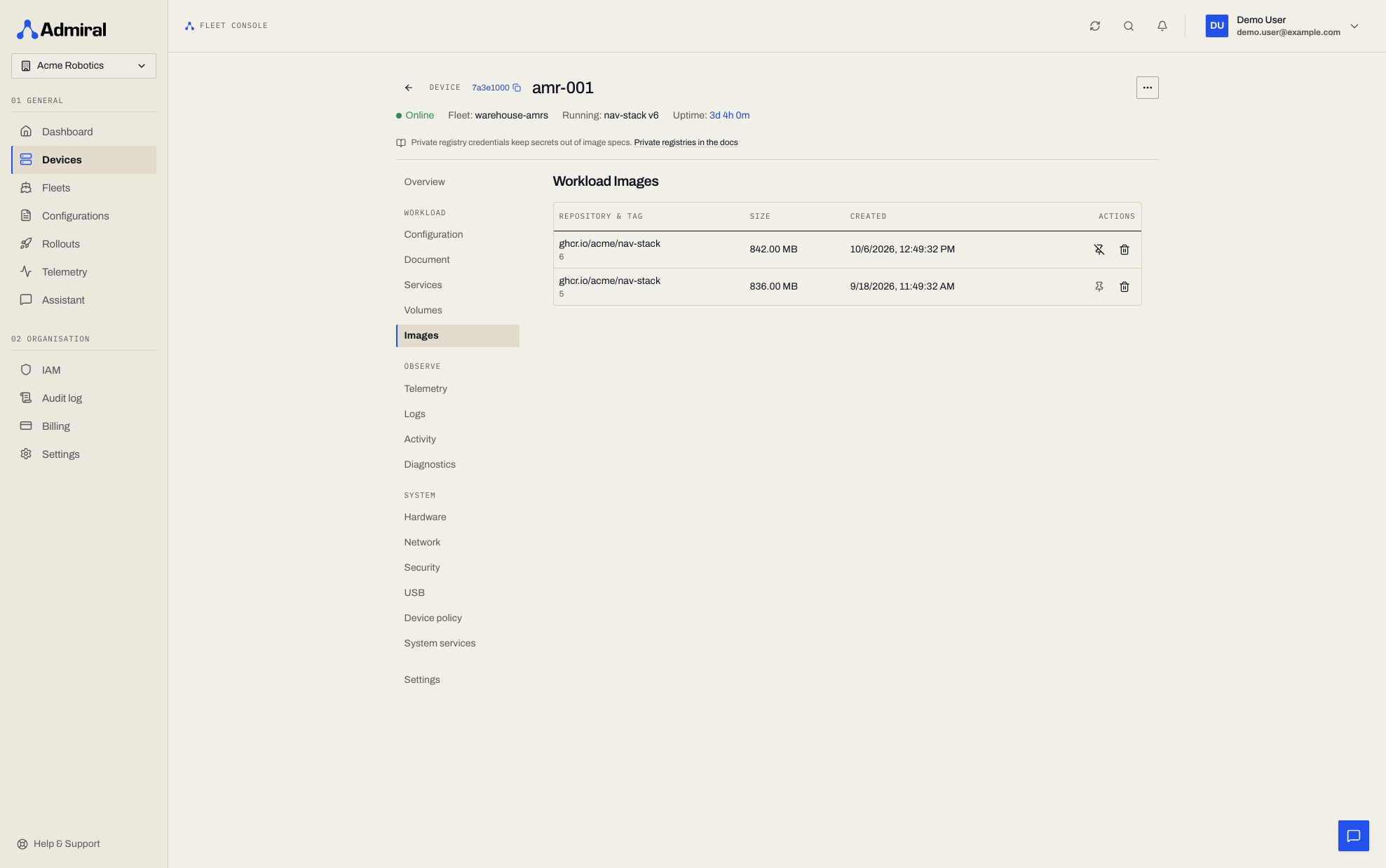
API: PUT /v1/devices/{deviceId}/images/pin with {"image": "<tag or digest>", "pinned": true}. Requires the Operate devices capability (included in the Technician, Engineer, and Administrator roles); the image must already be on the device.
Root Filesystem (Rootfs) Snapshot Persistence
When a workload starts for the first time, Admiral creates a writable Copy-on-Write (CoW) subvolume snapshot of the unpacked image:
/admrl/chains/<chain_id> → [CoW snapshot] → /admrl/workloads/<id>/rootfs
- Service Restarts & Reboots: When the workload restarts, or the device reboots under the same configuration, Admiral reuses the existing rootfs snapshot. It logs:
This ensures that fast container restarts do not incur the latency of re-creating the rootfs.Resuming with existing filesystem (Inflite Persistence)
- Image Updates & Configuration Changes: When you push an updated configuration with a new image version (e.g. upgrading from
0.1.0to0.1.1), Admiral destroys the old rootfs snapshot and creates a brand-new snapshot from the new image layers.
Any files written directly to the container rootfs (such as /tmp, /var/log, or user files created at runtime) will be permanently erased when the workload image is updated.
All durable application data, databases, sensor logs, and configuration state MUST be stored in Custom Volumes.
Custom Volumes (Persistent Storage)
Custom Volumes are dedicated, isolated Copy-on-Write (CoW FS) subvolumes stored outside the workload rootfs under /admrl/volumes/<volume_hash>.
- Survives All Updates: Custom Volumes persist across container restarts, configuration updates, image upgrades, and operating system updates.
- Atomic Snapshots: The supervisor can snapshot volumes in sub-milliseconds prior to software rollouts.
- Zero Fragmentation: Automatic filesystem compression reduces flash drive wear.
Volume Configuration Example
To persist application state, local databases, and configurations across updates:
Volume 1:
  Name:       app-data
  Mount Path: /var/lib/my-app
  Access:     Read-Write

Volume 2:
  Name:       app-config
  Mount Path: /etc/my-app
  Access:     Read-Write
System Mounts & Host Namespaces
System Mounts add extra mounts to the workload. For safety, only two kinds are accepted:
| Mount | Example | Use |
|---|---|---|
Device nodes (source under /dev) | /dev/ttyUSB0 → /dev/ttyUSB0 | Re-expose specific devices when Device Isolation is on. |
tmpfs | tmpfs → /dev/shm (size=4g) | Scratch space or an explicitly sized /dev/shm. |
Mount sources are normalised before they are checked, so the source must be /dev itself or a path beneath /dev/ (lookalikes such as /devices or /dev/../etc are rejected). Any other source (for example a host directory such as /etc or /var/log) is ignored and logged as a rejected mount. Use Custom Volumes for persistent data, or NFS mounts for shared network storage.
Host namespaces: the only host namespace a workload can share is the network namespace (Host Network). Process (PID), IPC, and hostname (UTS) namespaces are always private to the workload.
Workload names must start with a letter or digit and contain only letters, digits, ., _, and - (up to 63 characters).
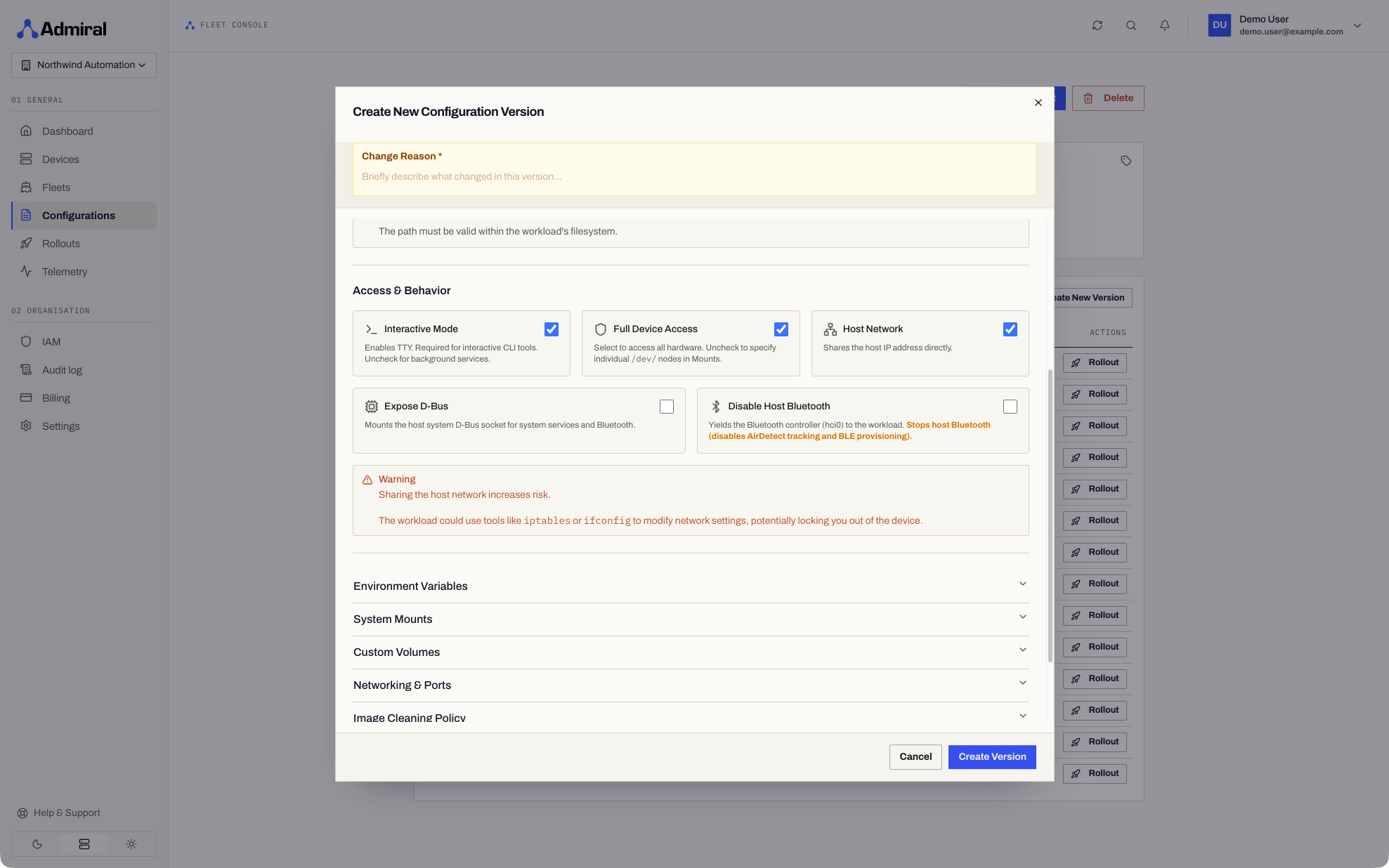
Host Services: D-Bus & Bluetooth
Two options under Options in the configuration editor give a workload access to host system services. Both can also be set as per-device overrides.
| Option | Effect |
|---|---|
Expose D-Bus (exposeDBus) | Mounts the host's system D-Bus socket (/run/dbus/system_bus_socket) into the workload so it can talk to host system services. Shown as Exposed or Isolated in the configuration view. |
Disable Host Bluetooth (disableHostBluetooth) | Hands the Bluetooth adapter to the workload. Admiral stops its own Bluetooth service and unblocks the radio so your application can own it. Shown as Yielded or Active. |
While the workload owns the Bluetooth adapter, AirDetect presence sensing, browser Bluetooth provisioning, and Bluetooth field service are unavailable on that device. Admiral takes the adapter back automatically when the workload stops or the option is cleared.
Secret Files
To deliver TLS keys, certificates, and other credentials to a workload without baking them into the image, attach Secret Files to the configuration. Files placed under /admrl/secrets/ appear read-only inside the workload and update without a restart.
Hardware Access & Device Nodes
By default, Admiral passes the entire host /dev hierarchy into the container namespace via recursive bind mounts (rbind, rslave), with cgroup permissions set to allow all character and peripheral devices (a *:* rwm).
- Dynamic USB Hotplugging: When a USB device (e.g. an industrial serial adapter, microcontroller, sensor, or peripheral) is disconnected and reconnected, the kernel dynamically creates a new node in
/dev/bus/usb/. Because ofrslavepropagation, the new device node is immediately visible inside the running container without restarting it. - Device Isolation (
isolateDevices: true): If your workload should NOT have access to host hardware, enable Device Isolation in the configuration. This replaces/devwith a restrictedtmpfscontaining only standard virtual nodes (/dev/null,/dev/zero,/dev/random).
For CAN bus, serial controllers, V4L2 cameras, and GPU acceleration, see the Hardware Access Guide. For NVIDIA Jetson Orin CUDA images, see Running GPU applications on Jetson Orin.
Recipe: Headless Python Service with Virtualenv & Background Daemons
Below is a complete, production-ready recipe for packaging and configuring a headless Python service (e.g. edge microservices, web APIs, or background workers):
1. The Dockerfile
FROM python:3.11-slim-bookworm

# Install required system tools and libraries
RUN apt-get update && apt-get install -y --no-install-recommends \
    libusb-1.0-0 \
    curl \
    && rm -rf /var/lib/apt/lists/*

# Create dedicated virtual environment
RUN python3 -m venv /opt/venv

# Install application dependencies into the virtualenv
COPY requirements.txt /app/requirements.txt
RUN /opt/venv/bin/pip install --no-cache-dir -r /app/requirements.txt

# Copy application source
COPY . /app
RUN /opt/venv/bin/pip install --no-cache-dir /app

# Ensure state directories exist
RUN mkdir -p /var/lib/my-app /etc/my-app

# CRITICAL: Always use absolute paths in the exec-form ENTRYPOINT
ENTRYPOINT ["/opt/venv/bin/python", "-m", "my_app.service"]
CMD ["--port", "8080", "--config", "/etc/my-app/config.yaml"]
2. The Admiral Configuration
In the Admiral dashboard (Configs > New Configuration):
name: "edge-service-appliance"
image: "docker.io/organization/edge-service:0.1.1"

# Desired state
desiredState: "RUNNING"

# Runtime options
options:
  interactive: false      # CRITICAL: Disable Interactive Mode for headless services
  isolateDevices: false   # Default: Allows access to host peripherals (/dev/bus/usb, /dev/ttyUSB*)
  readOnlyRoot: false

# Persistent storage for state across image updates
volumes:
  - name: "app-data"
    mountPath: "/var/lib/my-app"
  - name: "app-config"
    mountPath: "/etc/my-app"

# Network configuration
ports:
  - containerPort: 8080
    hostPort: 8080
    protocol: "TCP"
Troubleshooting & Diagnostics
If a newly deployed workload fails to start or crashes, use the following diagnostic sequence:
1. Inspecting Live Streaming Logs
Navigate to Devices > [Select Device] > Real-time Logs in the Admiral dashboard, or query via the Admiral API:
curl -H "X-API-Token-ID: $TOKEN_ID" \
     -H "X-API-Secret-Key: $SECRET_KEY" \
     "https://api.admrl.co/v1/devices/{deviceId}/logs?limit=100"
Common error signatures and their resolutions:
No such file or directory on start (<command> not found)
- Root Cause: Usually one of:
- A relative path in the command (e.g.
./run.shorapp/main.py). Admiral starts the workload in/, not the imageWORKDIR. - A command that only exists on a
PATHset at runtime (e.g. bysource /opt/venv/bin/activatein a shell role). OnlyPATHfrom the imageENVor the configuration is applied. - A shell-form command whose interpreter (
/bin/sh) is missing in minimal or distroless images.
- A relative path in the command (e.g.
- Fix: Use absolute paths in exec form (e.g.
["/opt/venv/bin/my-service"]or["/opt/venv/bin/python", "-m", "my_service"]), orcdin an entrypoint script beforeexec.
Desktop / Windowing Daemons Starting Unexpectedly (Weston, seatd, udevd)
- Root Cause:
Interactive Modeis enabled on a headless image that contains desktop packages. The workload was given its own VT and the keyboard, so graphical services in the image initialize. - Fix: Edit the Configuration, uncheck Interactive Mode (
interactive: false), and deploy the new configuration version.
Image Not Updating After Pushing to Registry
- Root Cause: The configuration uses a pinned tag (e.g.
:0.1.0), and the image was pushed over the existing tag in the registry. Because:0.1.0is already cached on disk, Admiral skips the remote registry check. - Fix: Always publish a new tag (e.g.
:0.1.1) or deploy by SHA256 digest (image@sha256:...).
Next Steps
- Connect physical sensors, printers, and motor controllers in the Hardware Access Guide.
- Configure private Docker Hub, GitHub, or AWS ECR registries in Registry Credentials.
- Roll out configuration updates progressively using the Rollouts Engine.